Installing VsCode C Compiler
Installing VsCode C Compiler
Using GCC with MinGW
In this book you configure Visual Studio Code to use the GCC C++ compiler (g++) and GDB debugger from Mingw-w64 to create programs that run on Windows.
After configuring VS Code, you will compile and debug a simple Hello World program in VS Code. This book not teach you about GCC or Mingw-w64 or the C++ language. For those subjects, there are many good resources available on the Web.
- Prerequisites
To successfully complete this book, you must do the following steps:
- Install Visual Studio Code.
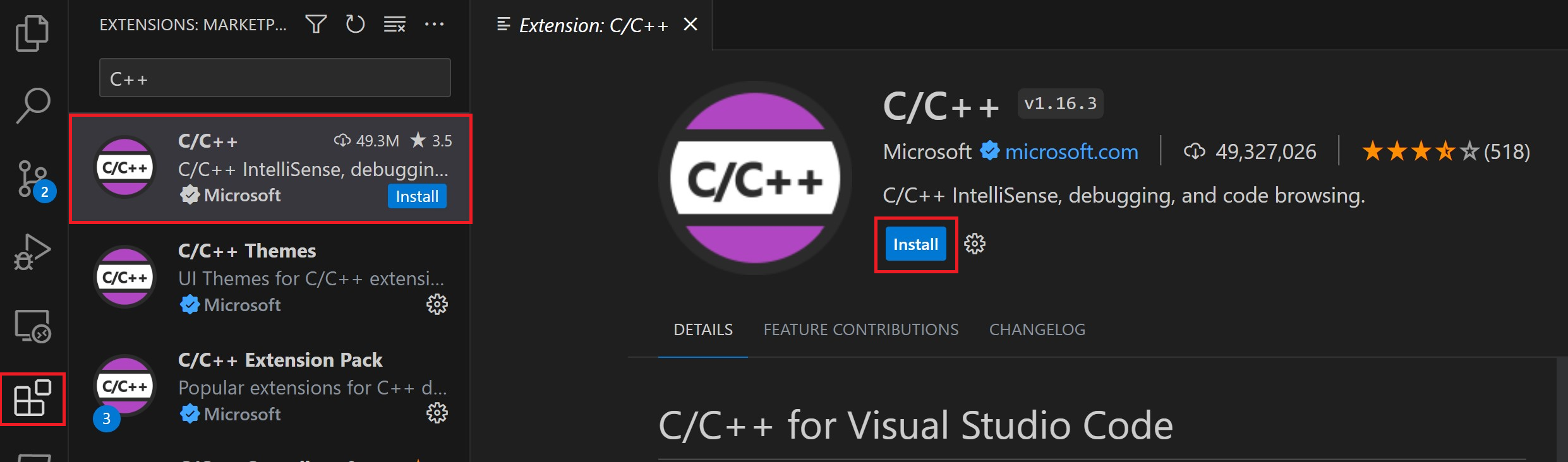
- Install the C/C++ extension for VS Code. You can install the C/C++ extension by searching for 'c++' in the Extensions view (Ctrl+Shift+X).
- You will install Mingw-w64 via the SourceForge website. Click Mingw-w64 to begin downloading the compressed archive file. Extract the tools from the compressed file to a folder that has no spaces in its path. In this book we assume it is installed under
C:\mingw-w64. - Add the path to your Mingw-w64
binfolder to the Windows PATH environment variable.- In the Windows search bar, type 'settings' to open your Windows Settings.
- Search for Edit environment variables for your account.
- Choose the
Pathvariable and then select Edit. - Select New and add the Mingw-w64 path to the system path. The exact path depends on which version of Mingw-w64 you have installed and where you installed it. Here is an example:
c:\mingw-w64\x86_64-8.1.0-win32-seh-rt_v6-rev0\mingw64\bin. - Select OK to save the
Pathupdate. You will need to reopen any console windows for the new PATH location to be available.
- Check your MinGW installation
To check that your Mingw-w64 tools are correctly installed and available, open a new Command Prompt and type:
g++ --version
gdb --version
If you don't see the expected output or
g++ or gdb is not a recognized command, check your installation (Windows Control Panel > Programs) and make sure your PATH entry matches the Mingw-w64 location.Create Hello World
From a Windows command prompt, create an empty folder called
projects where you can place all your VS Code projects. Then create a sub-folder called helloworld, navigate into it, and open VS Code in that folder by entering the following commands:mkdir projects
cd projects
mkdir helloworld
cd helloworld
code .
The "code ." command opens VS Code in the current working folder, which becomes your "workspace". As you go through the tutorial, you will see three files created in a
.vscode folder in the workspace:tasks.json(build instructions)launch.json(debugger settings)c_cpp_properties.json(compiler path and IntelliSense settings)
Add a source code file
In the File Explorer title bar, select the New File button and name the file
helloworld.cpp.
Add hello world source code
Now paste in this source code:
#include <iostream>
#include <vector>
#include <string>

using namespace std;

int main()
{
    vector<string> msg {"Hello", "C++", "World", "from", "VS Code", "and the C++ extension!"};

    for (const string& word : msg)
    {
        cout << word << " ";
    }
    cout << endl;
}
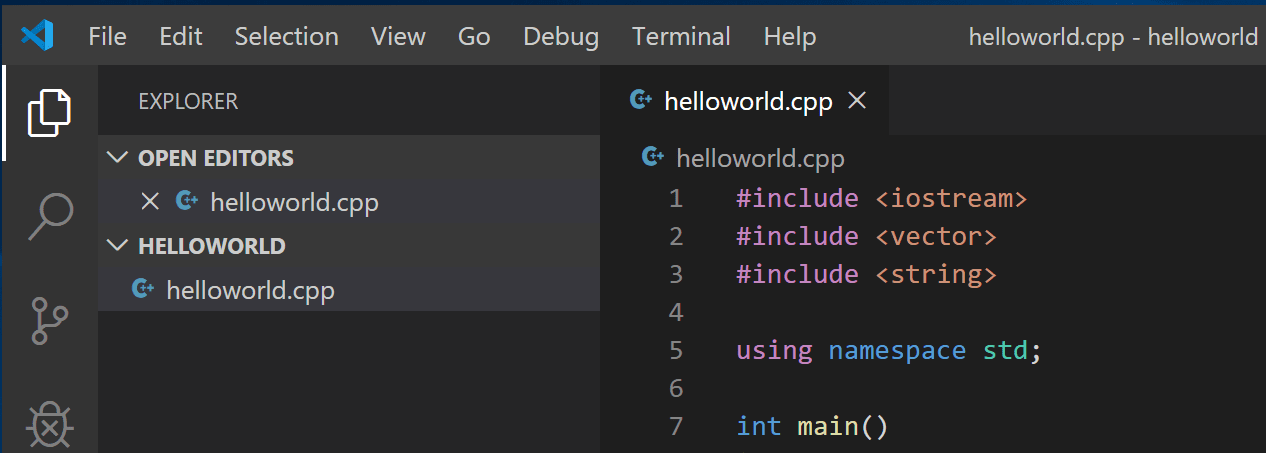
Now press Ctrl+S to save the file. Notice how the file you just added appears in the File Explorer view (Ctrl+Shift+E) in the side bar of VS Code:
You can also enable Auto Save to automatically save your file changes, by checking Auto Save in the main File menu.


Comments
Post a Comment